Cra 0.1.2130 October 2026
Pinned split views and a quick way to clear cookies
A split view can now be pinned like a tab, Clear Cookies and Clear Cache are a few keystrokes away in the command bar, and if you only use one space you can hide its header.
Pin a split view
Drag a split view into Pinned, or press ⌘D with one of its pages open, and the whole split stays there like a pinned tab, as in Arc. ⌘W closes it and keeps it pinned, and each page goes back to where it was when you pinned it. A split row now drags as one item, and right-clicking it shows Arc’s split menu, with each page’s own options under Tab Options.
Clear cookies and cache from the command bar
Type “clear” in the command bar for Clear Cache and Refresh and Clear Cookies and Refresh, the way Arc offers them. Cookies are cleared for the site you’re on, then the page reloads. Both are also in the View menu, and a command whose name you type now comes before the search row.
Hide the space header
If you only use one space, right-click its name and choose Hide Space Header, Arc’s option for people who don’t use spaces. The name and the space’s icon at the bottom of the sidebar go away; Show Space Header in the sidebar’s menu brings them back. It’s also in Settings ▸ Tabs.
What else is new
⌘Z brings back a closed tab
Press ⌘Z after closing a tab and it comes back, as in Arc. In a text field, ⌘Z still undoes your typing. Asked for by sashkohristov in #21.
Extensions follow the space’s profile
A space now shows only the extensions installed in its own profile, and clicking an extension from another profile no longer crashes Cra. Sagar Dagdu reported it in #22 and fixed it in #23.
Thank you, Sagar.
Thank you
Cra is free and made in the open. Sponsor Cra
For every change in 0.1.21, see the changelog.
Past releases
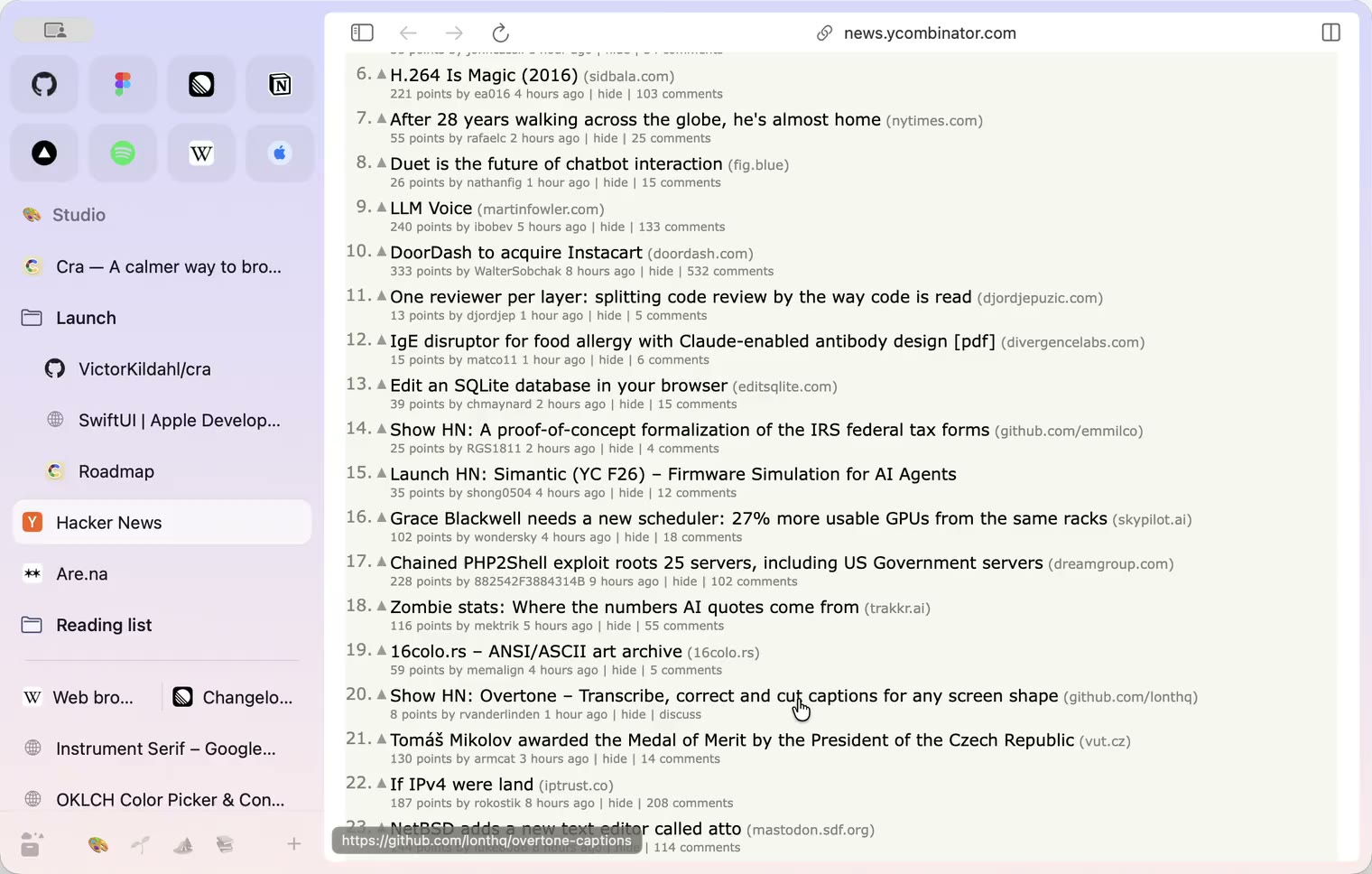
29 October 20260.1.20
Peek, Site Search and instant extension popups
- 0.1.19
29 October 20260.1.19
Extension popups open right away

29 October 20260.1.18
A sidebar built for speed
- 0.1.17
28 October 20260.1.17
Pages live inside the window
- 0.1.16
28 October 20260.1.16
A smoother Cra
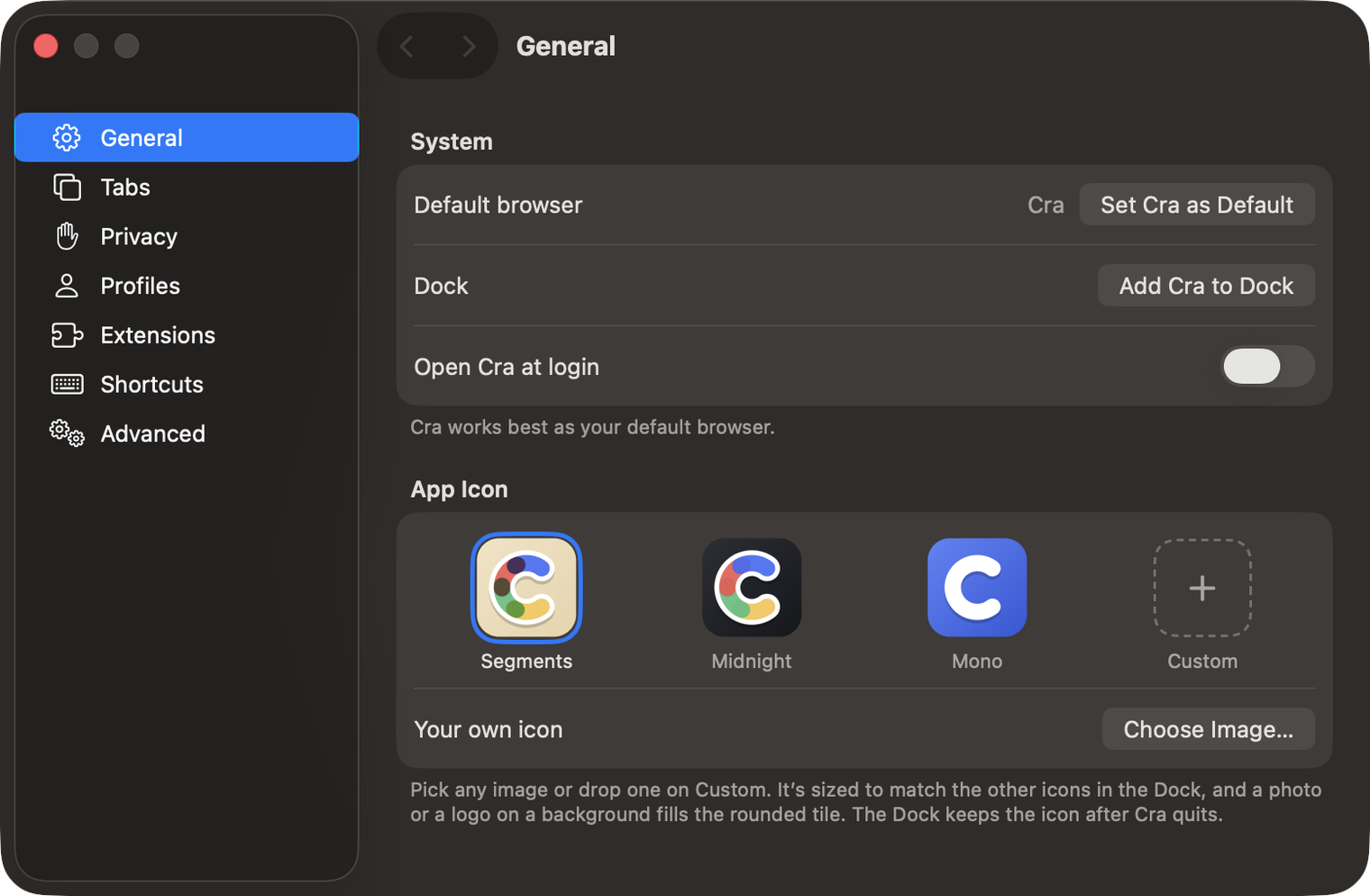
28 October 20260.1.15
Make Cra’s icon your own
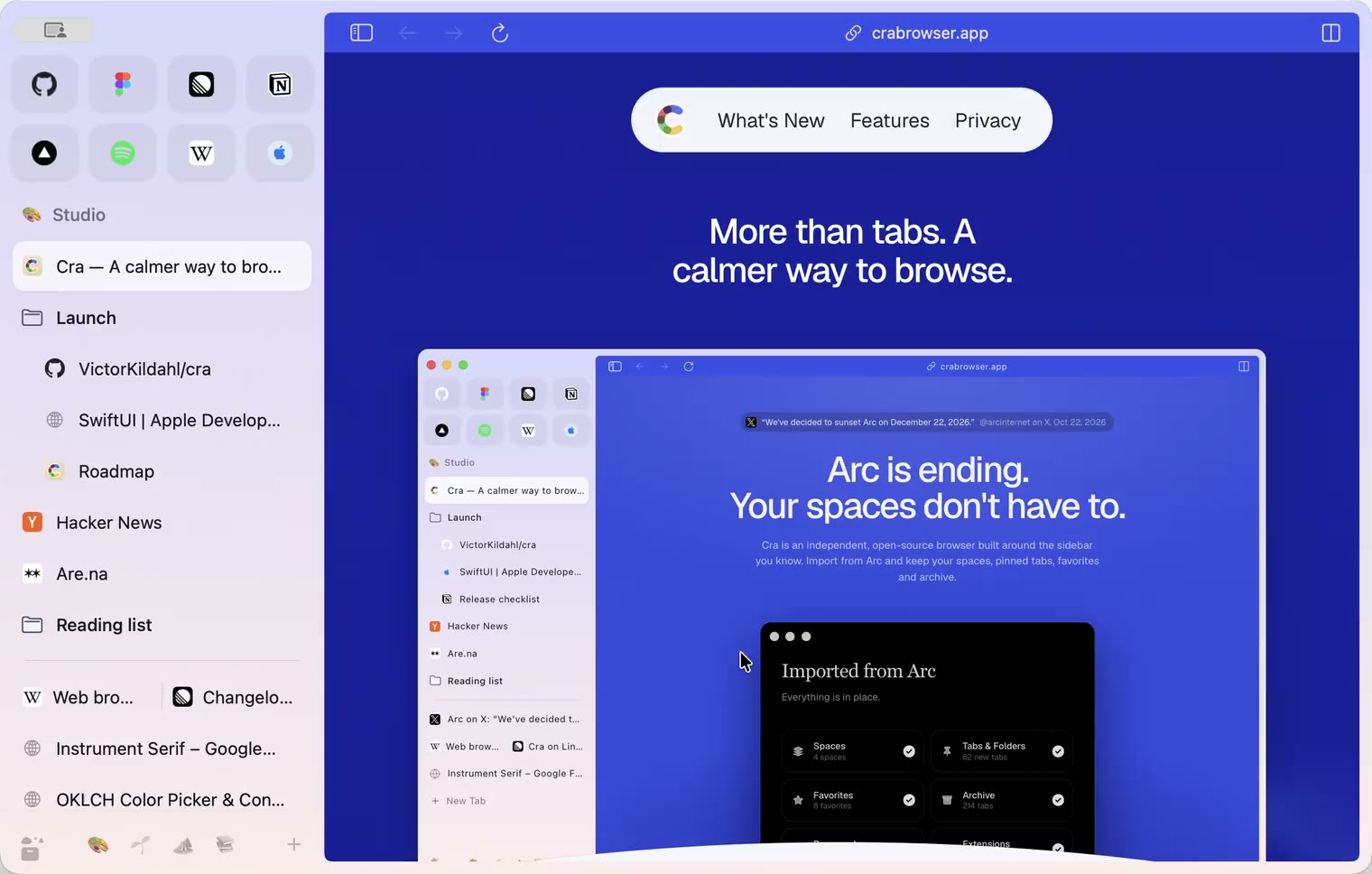
27 October 20260.1.14
The Library moves into the sidebar
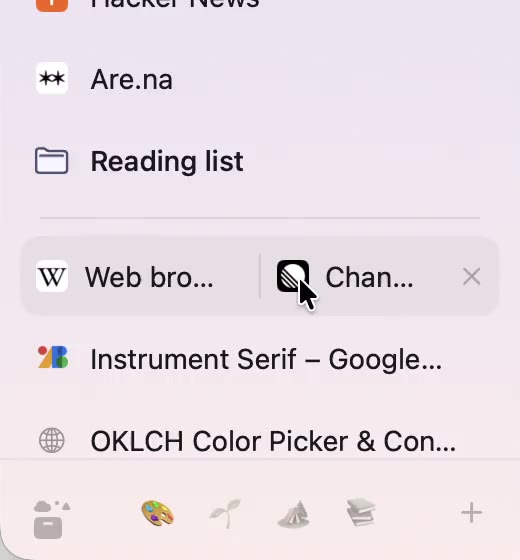
27 October 20260.1.13
Drag your spaces into order
27 October 20260.1.12
Downloads that outlive their tab
27 October 20260.1.11
Your passwords, locked in your Keychain
26 October 20260.1.10
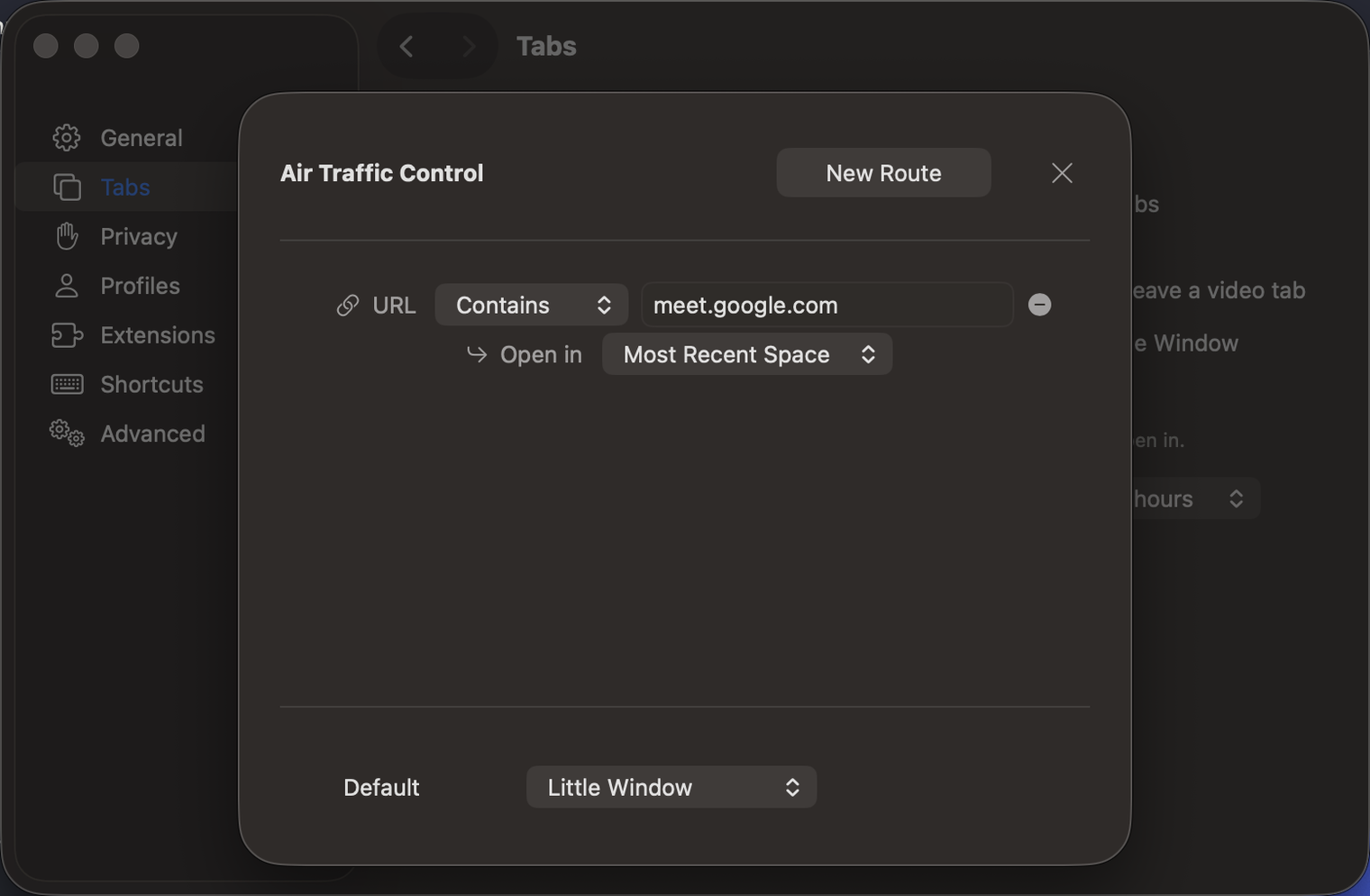
Air Traffic Control
26 October 20260.1.9
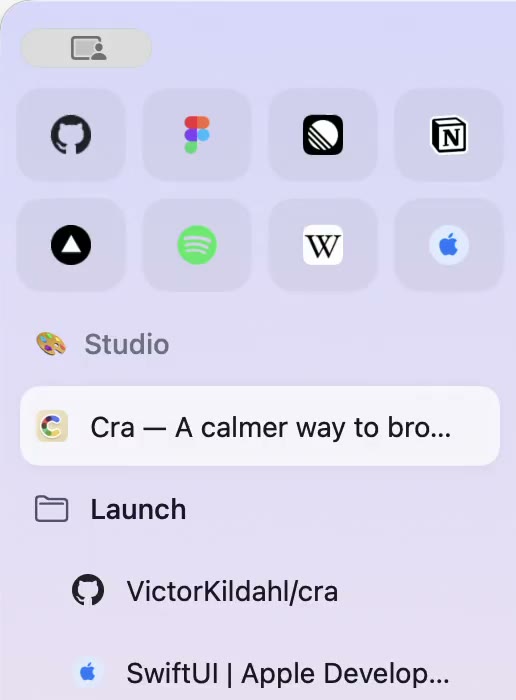
Favorites per space
- 0.1.8
26 October 20260.1.8
Video everywhere
- 0.1.7
26 October 20260.1.7
Work sign-ins
26 October 20260.1.6
Drag and drop that works
26 October 20260.1.5
Sign in with Google
26 October 20260.1.4
Copy, paste and clean corners
26 October 20260.1.3
Extensions that reach their apps
- 0.1.2
26 October 20260.1.2
Notarized, and it updates itself
- 0.1.1
25 October 20260.1.1
Quit fix
25 October 20260.1.0
Early access